Minigame
The Minigame List feature on the Mini Gift platform allows administrators to manage all minigames currently in use in the system. Here, users can:
- View the existing minigame list
- Monitor the activity status of each minigame
- Create new minigames
- Edit or delete minigames when needed
This feature helps businesses deploy interactive campaigns, attracting users through minigame formats such as lucky wheels, prize games, etc.
1. Accessing the Minigame List
From the left menu bar, select:
Minigame → Minigame List
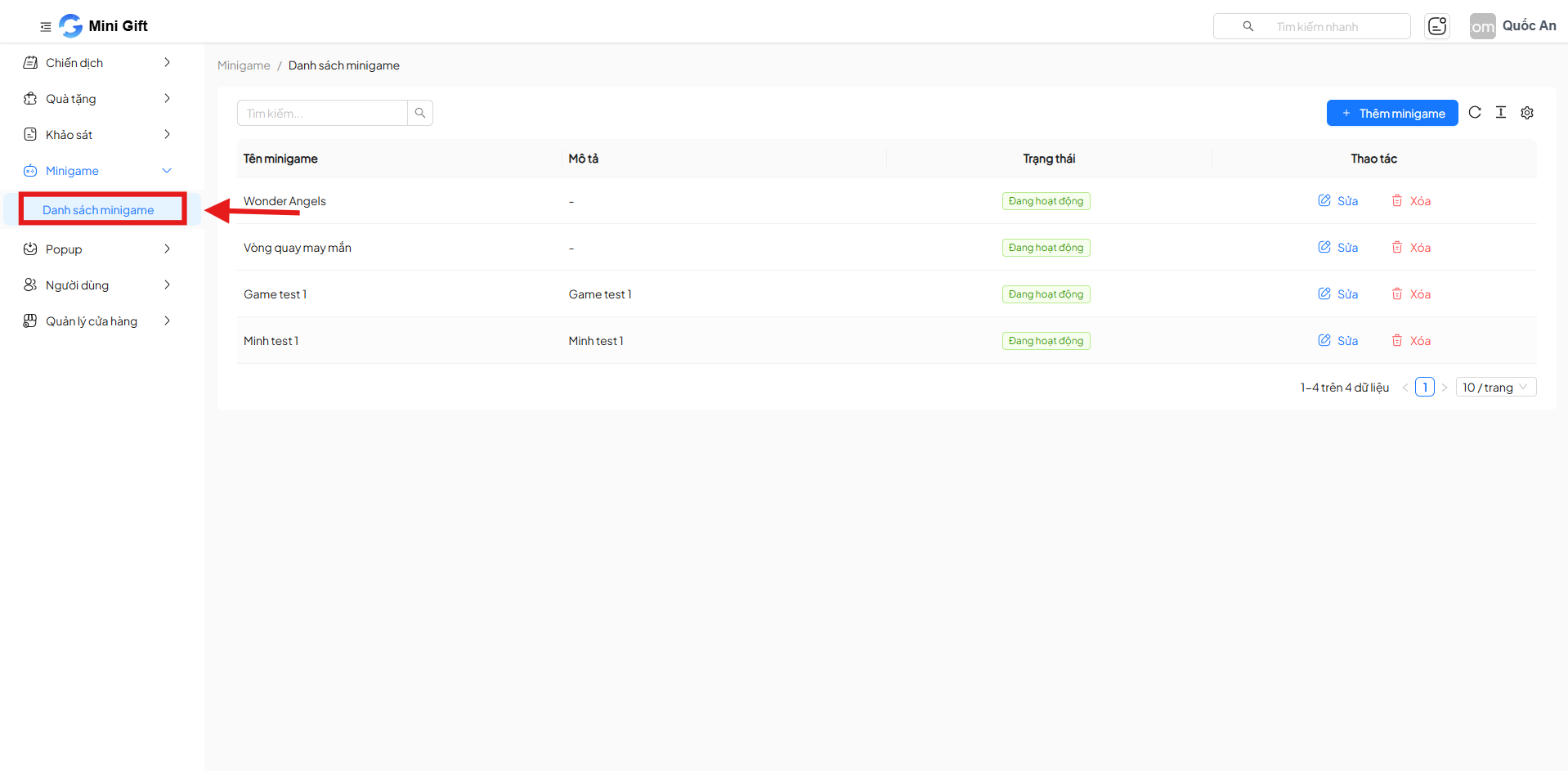
2. Minigame List
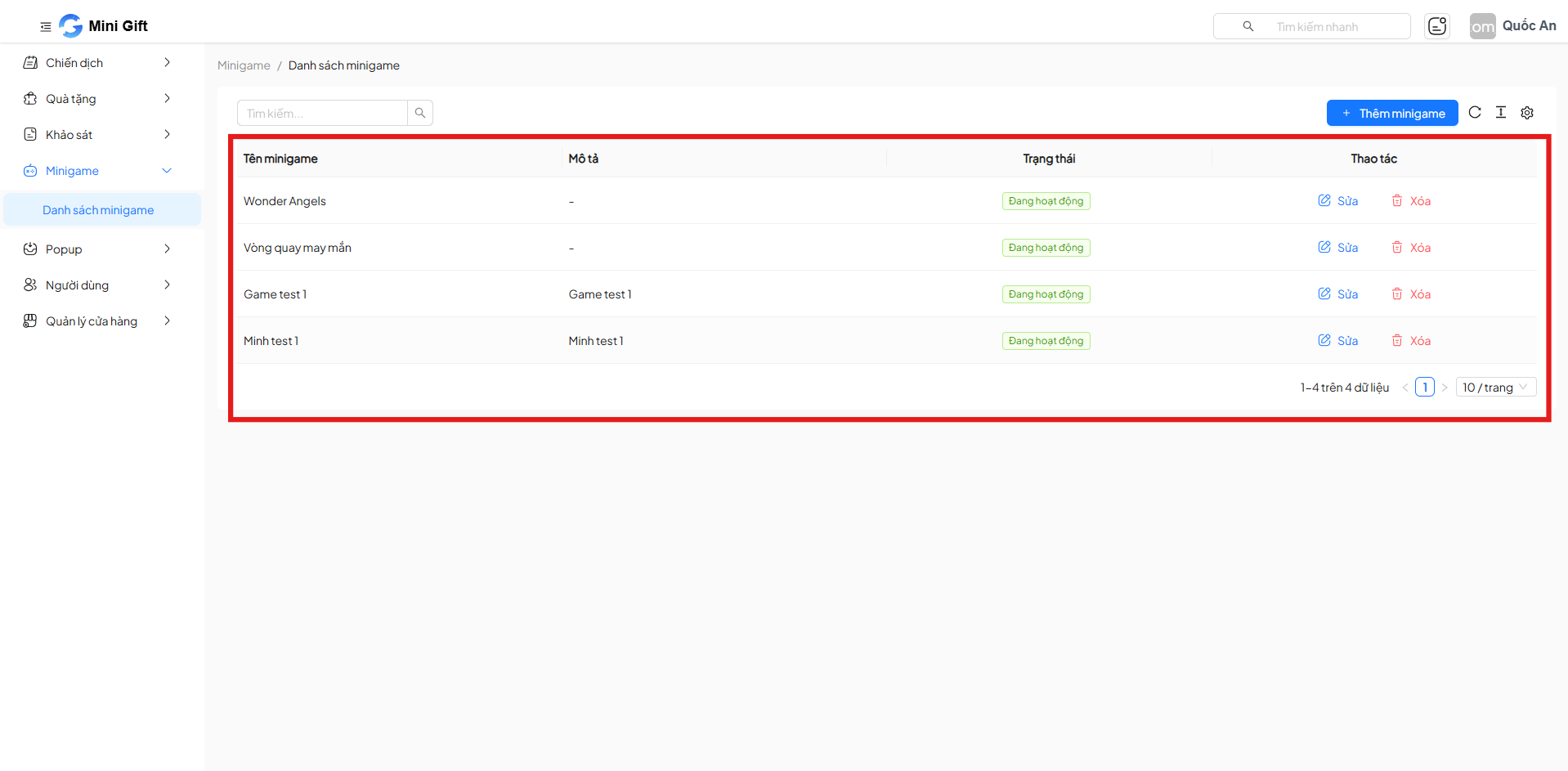
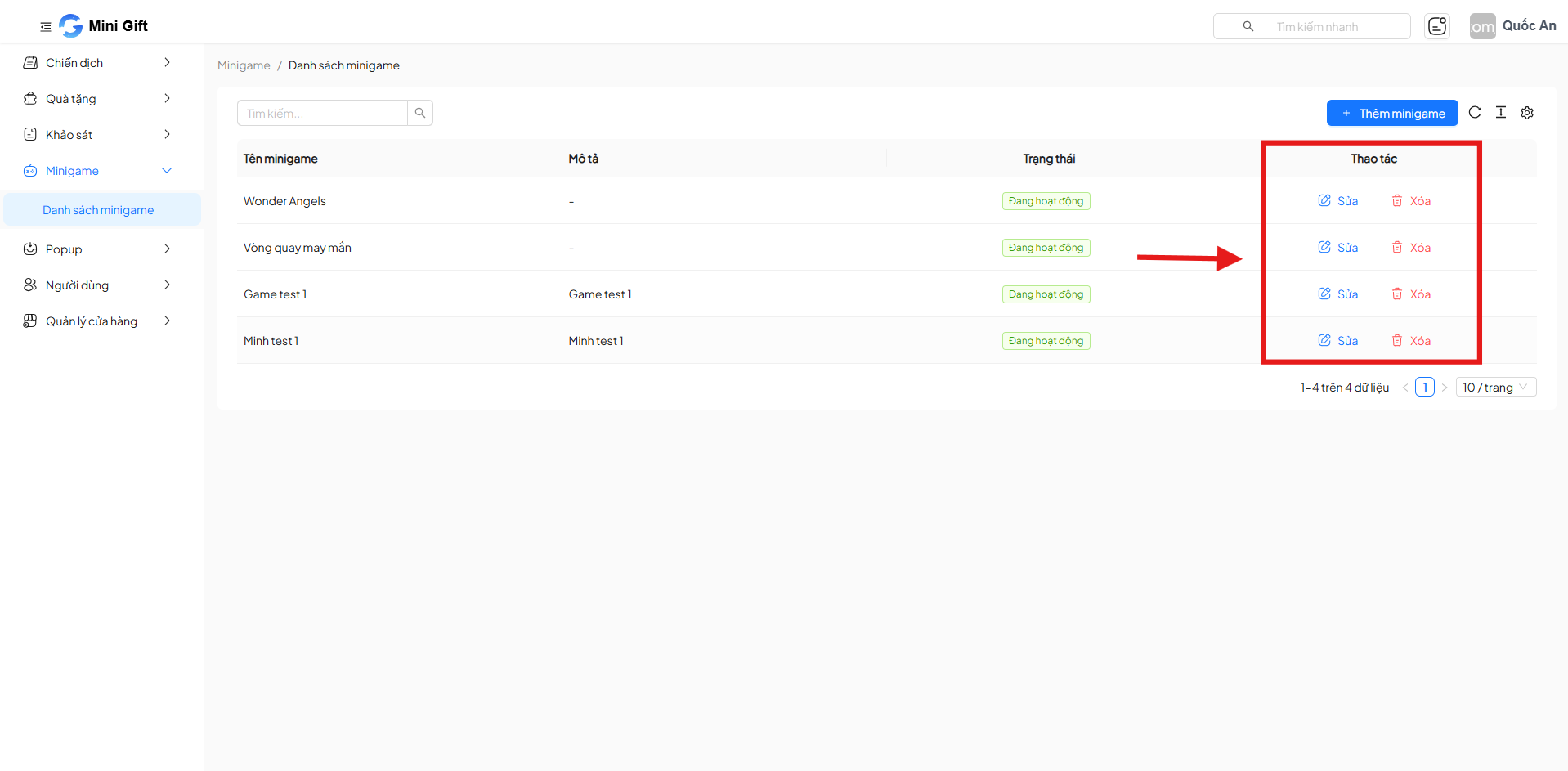
The minigame list screen displays a table with the following columns:
2.1. Column Information
| Column | Description |
|---|---|
| Minigame Name | The identifying name of the minigame |
| Description | Brief description of the minigame content |
| Status | Activity status of the minigame (Active / Inactive) |
| Actions | Minigame management actions |
2.2. Search Minigames
Users can use the Search box to quickly filter the minigame list by name.
3. Create a New Minigame
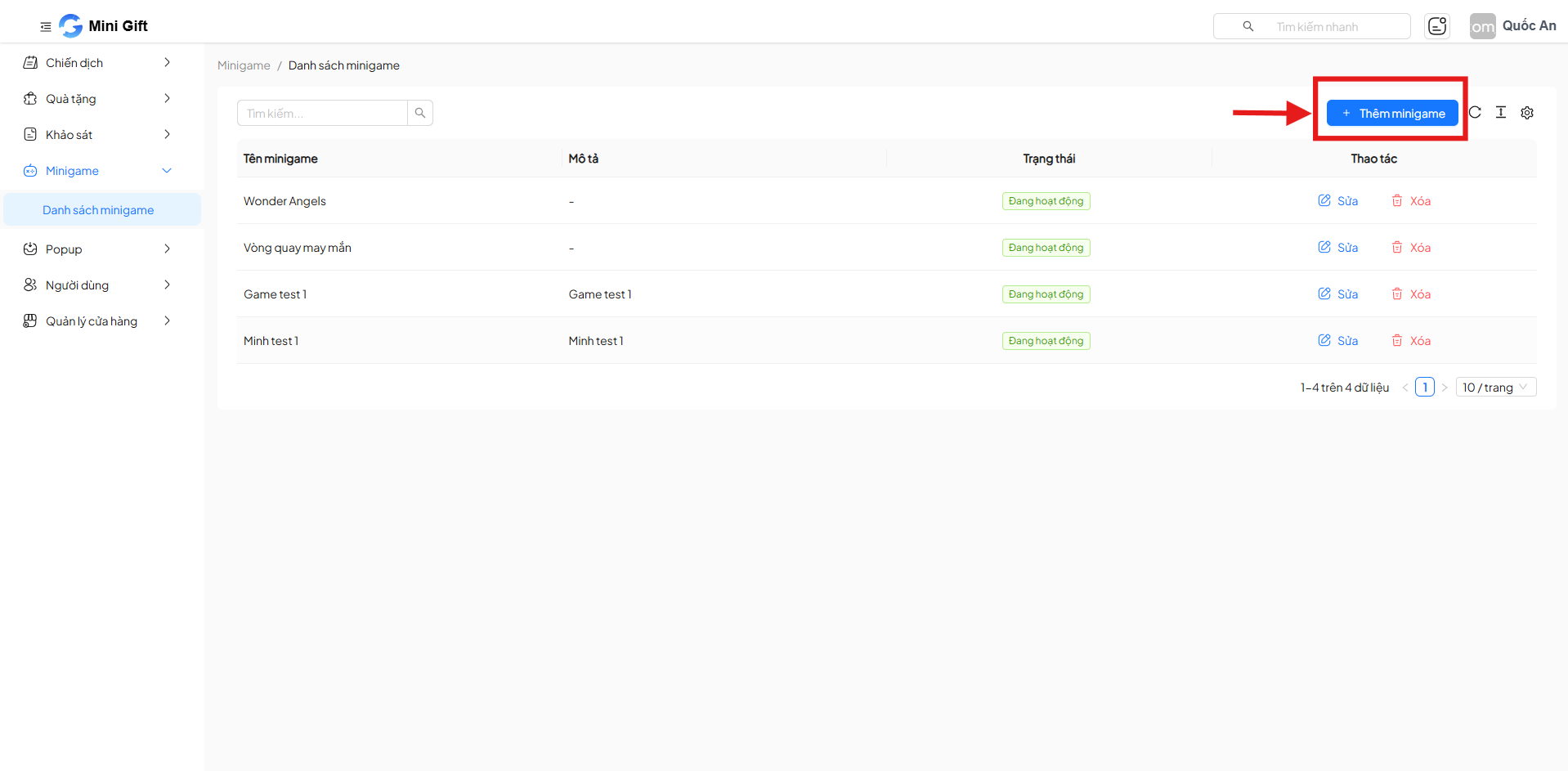
To create a new minigame, click the + Add Minigame button in the upper right corner of the screen.
3.1. Add Minigame Form
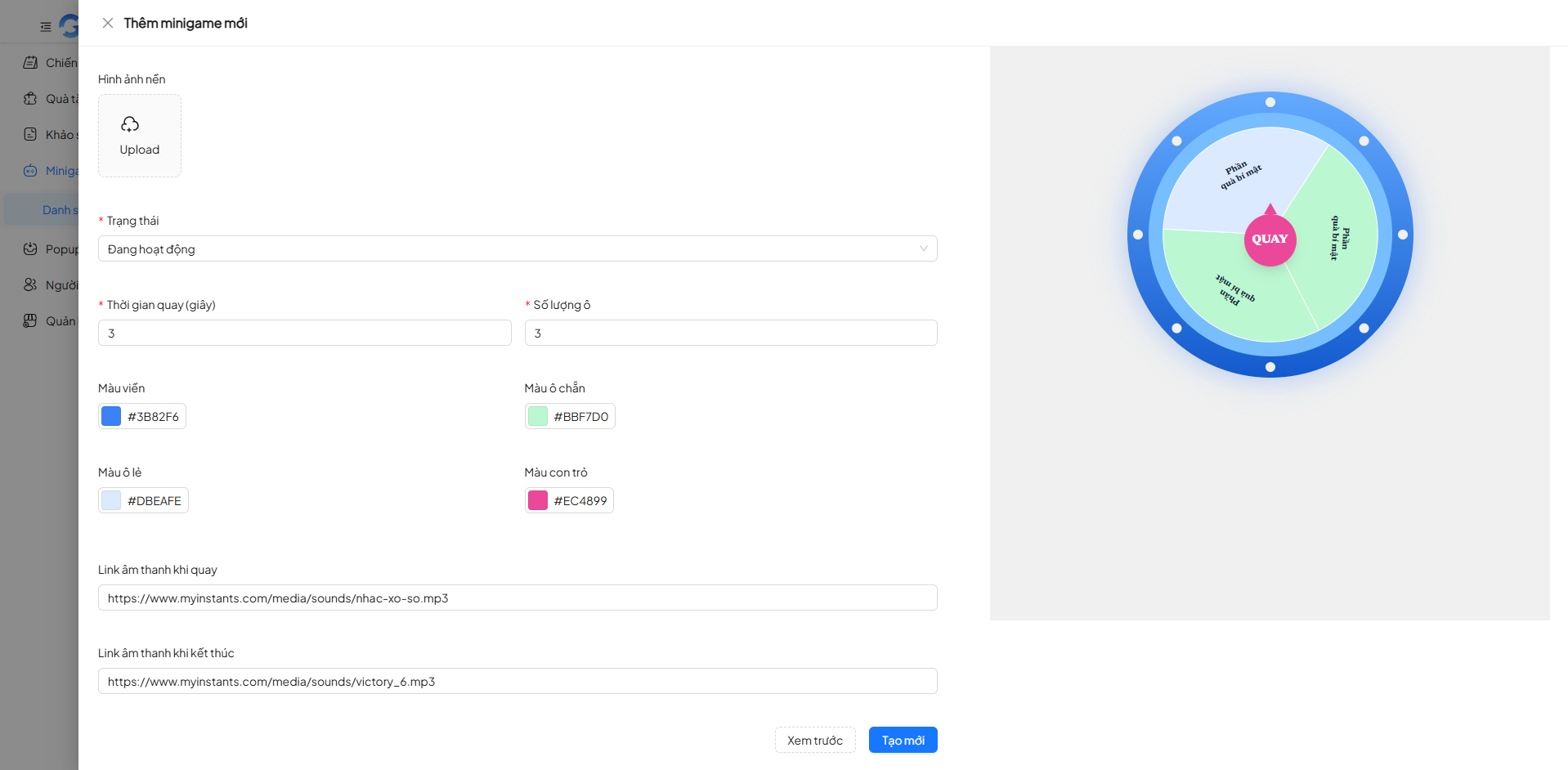
After clicking Add Minigame, the system displays the minigame configuration form.
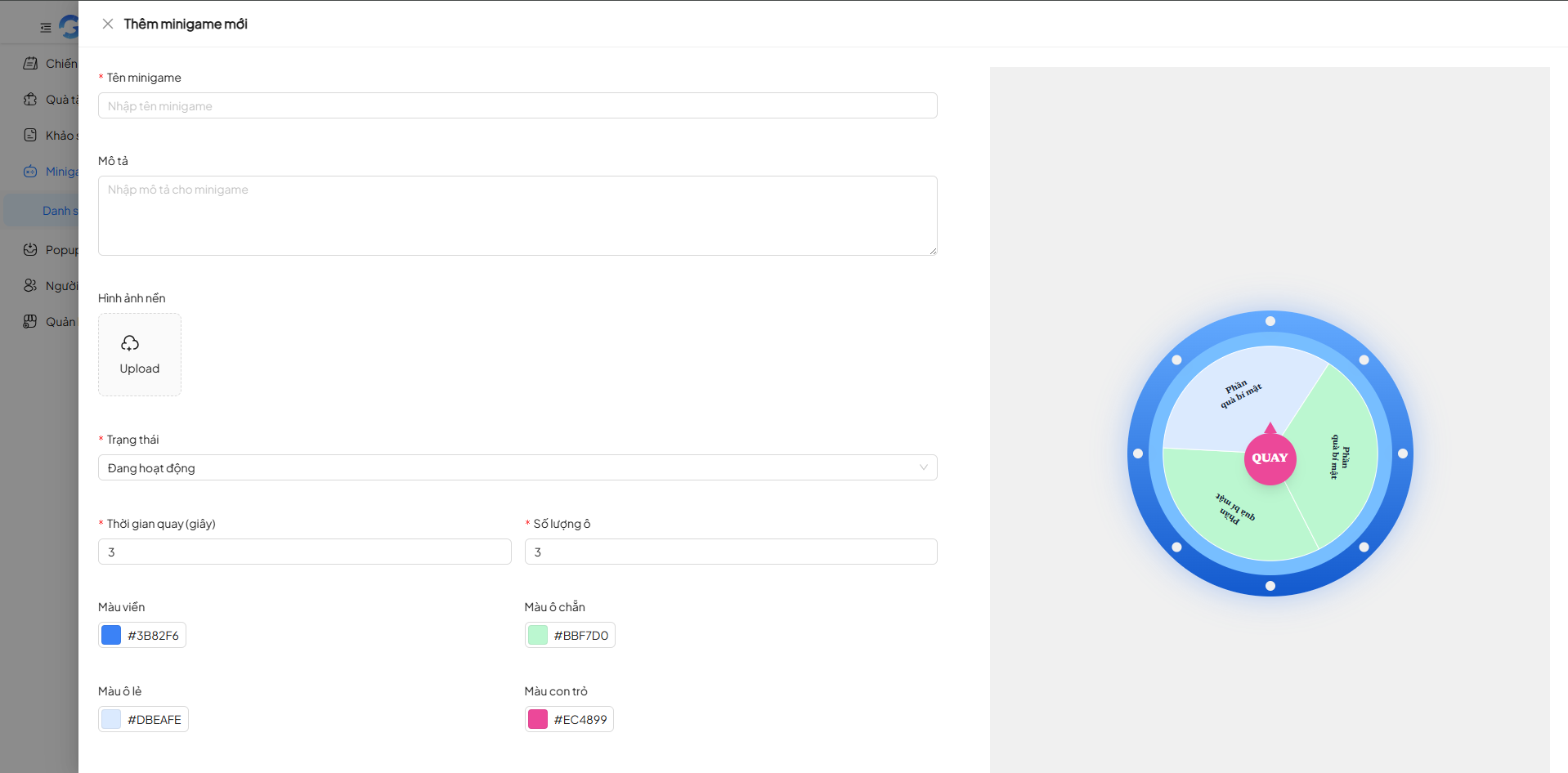
3.2. Information to Enter
General Information
| Field | Required | Description | Example |
|---|---|---|---|
| Minigame Name | Yes | Display name of the minigame in the system and when users participate | Lucky Wheel |
| Description | No | Brief description of the minigame content or purpose | Spin-to-win minigame |
| Background Image | No | Background image displayed for the minigame, enhancing visual appeal | Wheel background PNG/JPG |
| Status | Yes | Determines whether the minigame is currently in use | Active |
Wheel Configuration
| Configuration Field | Required | Description | Example |
|---|---|---|---|
| Spin Duration (seconds) | Yes | Duration the wheel spins before stopping | 3 |
| Number of Slots | Yes | Number of prize slots on the wheel | 8 |
| Border Color | No | Outer border color of the wheel | #3B82F6 |
| Even Slot Color | No | Background color of even slots on the wheel | #BBF7D0 |
| Odd Slot Color | No | Background color of odd slots on the wheel | #DBEAFE |
| Pointer Color | No | Color of the pointer indicating the result position | #EC4899 |
Sound Configuration
| Sound Field | Required | Description | Example |
|---|---|---|---|
| Spinning Sound URL | No | Sound played while the wheel is spinning | https://www.mysounds.com/spin.mp3 |
| End Sound URL | No | Sound played when the wheel stops | https://www.mysounds.com/win.mp3 |
3.3. Preview & Create
- Click Preview to check the minigame interface before saving
- Click Create to complete the minigame creation
4. Minigame Management Actions
4.1. Edit Minigame
In the Actions column, click Edit to update the minigame information.
4.2. Delete Minigame
Click Delete to remove the minigame from the system. The system will display a confirmation dialog to avoid accidental actions.
5. Important Notes
- Active minigames can be used immediately in campaigns
- Deleting a minigame may affect campaigns currently using it
- Use Preview to ensure the display configuration meets expectations
6. Summary
The Minigame List feature is the central tool for administrators to manage all minigames on the Mini Gift platform, helping optimize interactive marketing campaigns and enhance user experience.