Custom Shipping Fee Setup
Custom Shipping Fee Setup
When users choose to manage their own delivery, the system allows setting up fixed shipping fees by region (province/city). This configuration method helps stores proactively control costs, optimize operations, and remain flexible according to actual delivery coverage.
Note
- This feature is suitable for stores with their own delivery teams or those not using the built-in integrated shipping carriers.
- Fixed shipping fees will be applied when customers select Self-delivery as the shipping method.
- If a delivery area does not have a specific fee configuration, the system will use the default shipping fee.
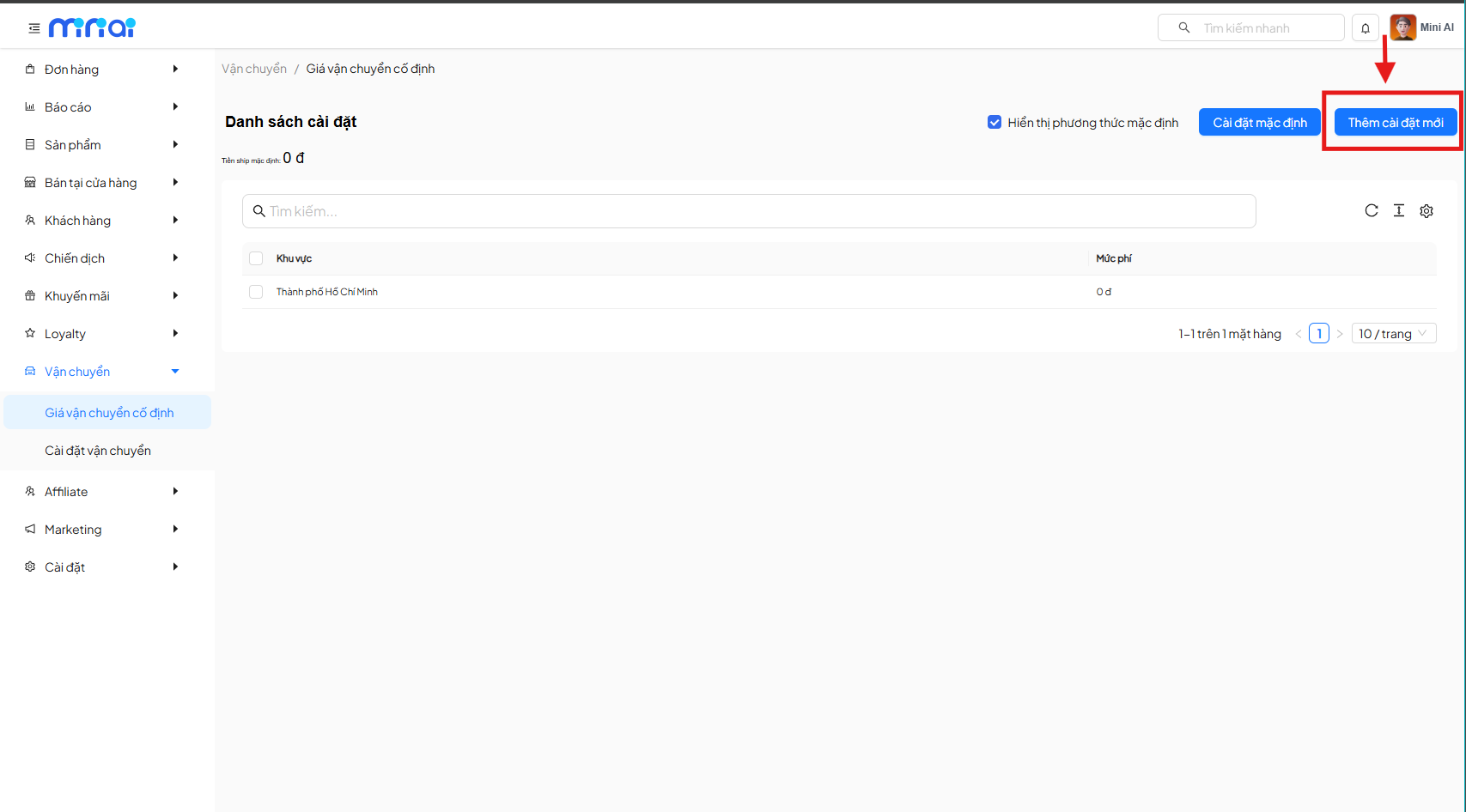
1. Fixed Shipping Price Screen Overview
On the Fixed Shipping Price screen, users can:
- View the list of areas with configured shipping fees
- Set or change the default shipping fee
- Add new shipping fees by province/city
- Manage the application status of shipping fees
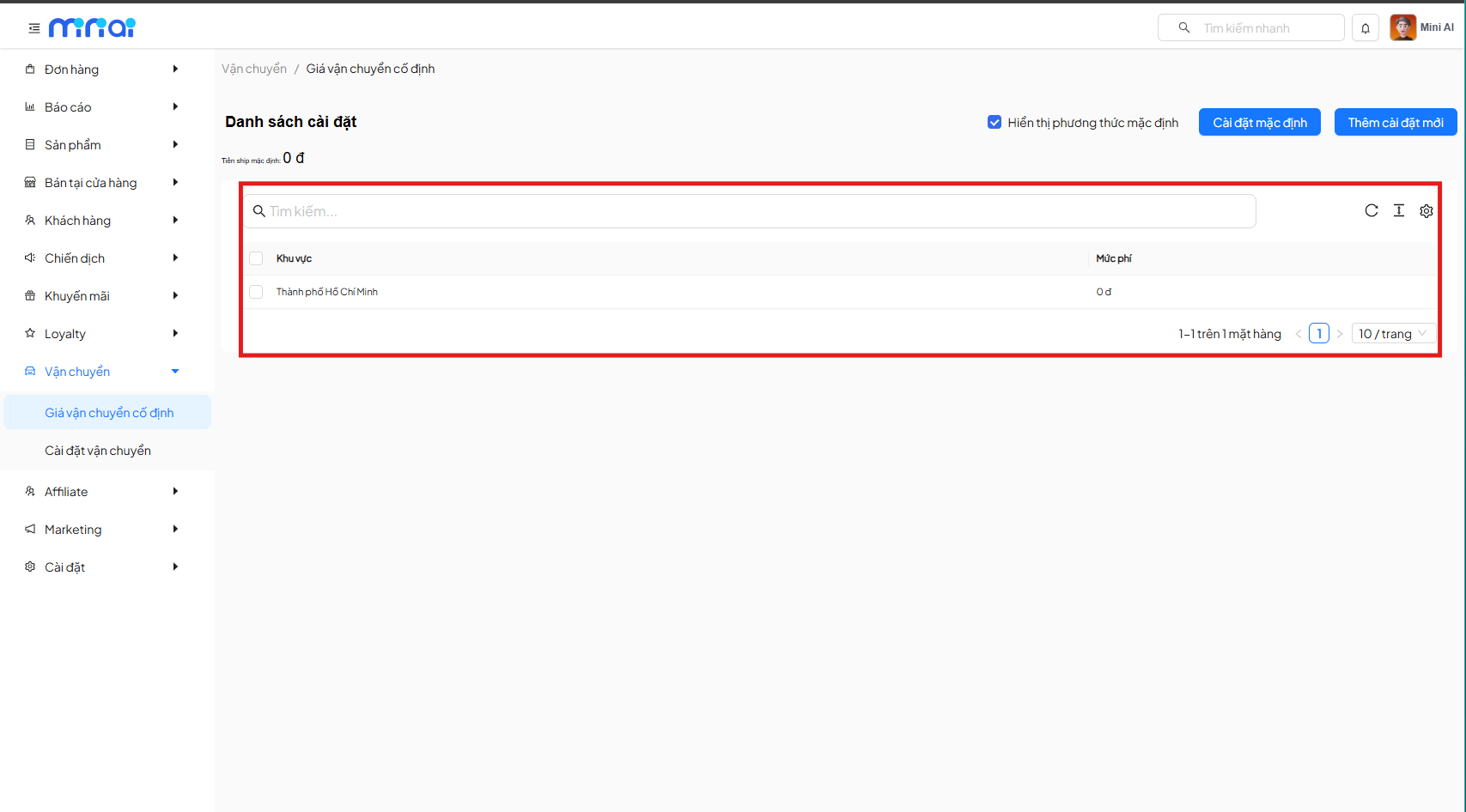
2. Feature Component Description Table
| Component | Description |
|---|---|
| Fixed Shipping Price | Access from menu: Delivery → Fixed Shipping Price to manage shipping fee configuration |
| Settings List | Displays areas with configured shipping fees along with corresponding fee amounts |
| Default Shipping Fee | The fee applied when a delivery area has no specific configuration (e.g., 0₫) |
| Show Default Method | Enable/disable the display of this shipping method on the customer checkout screen |
| Default Settings | Quickly set the default shipping fee for the entire system |
| Add New Setting | Create a new shipping fee for a specific delivery area |
| Search | Search quickly for configured areas in the list |
| Area List | Displays provinces/cities and their corresponding shipping fees |
| Pagination | Supports pagination when the number of configured areas is large |
3. Setting Up the Default Shipping Fee
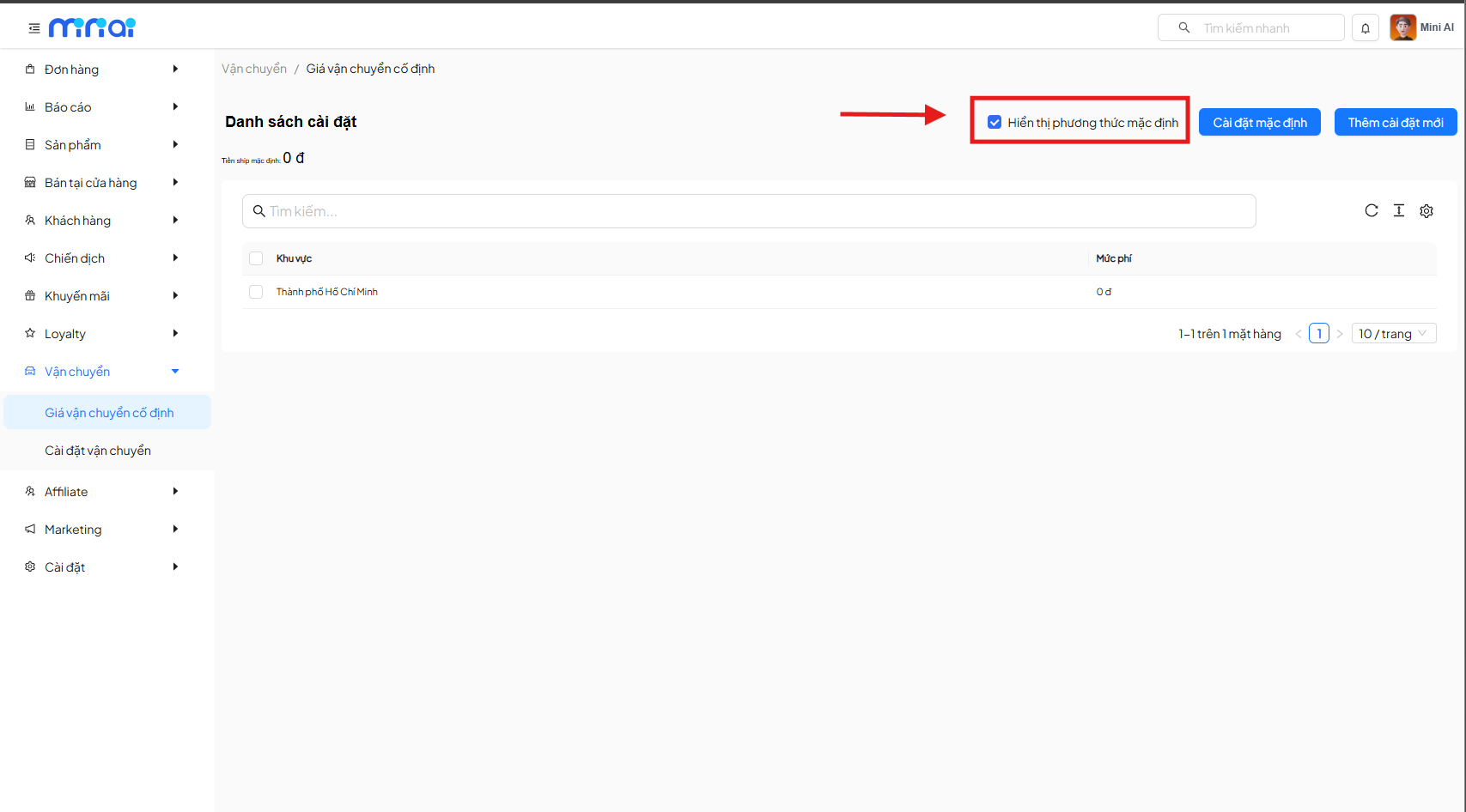
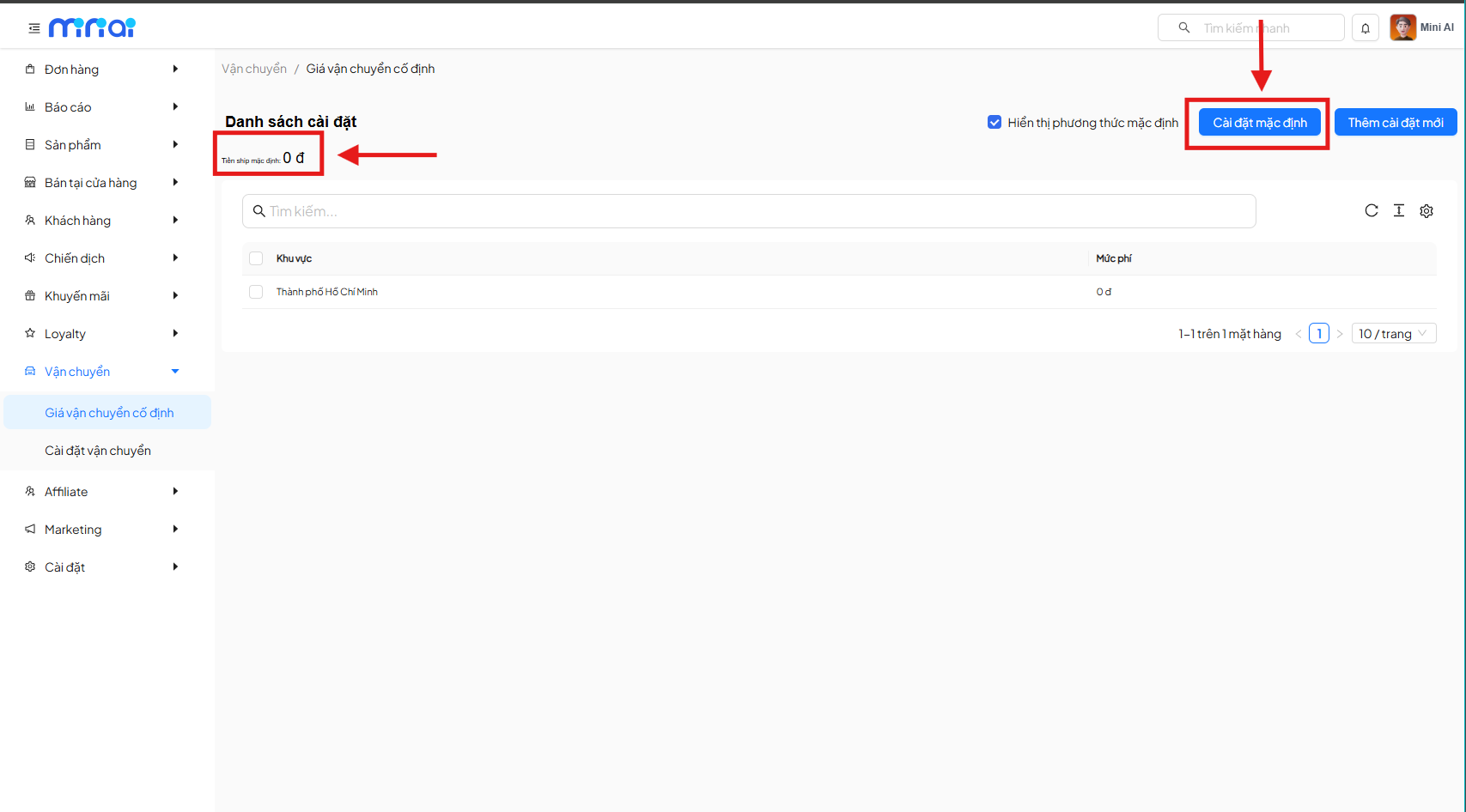
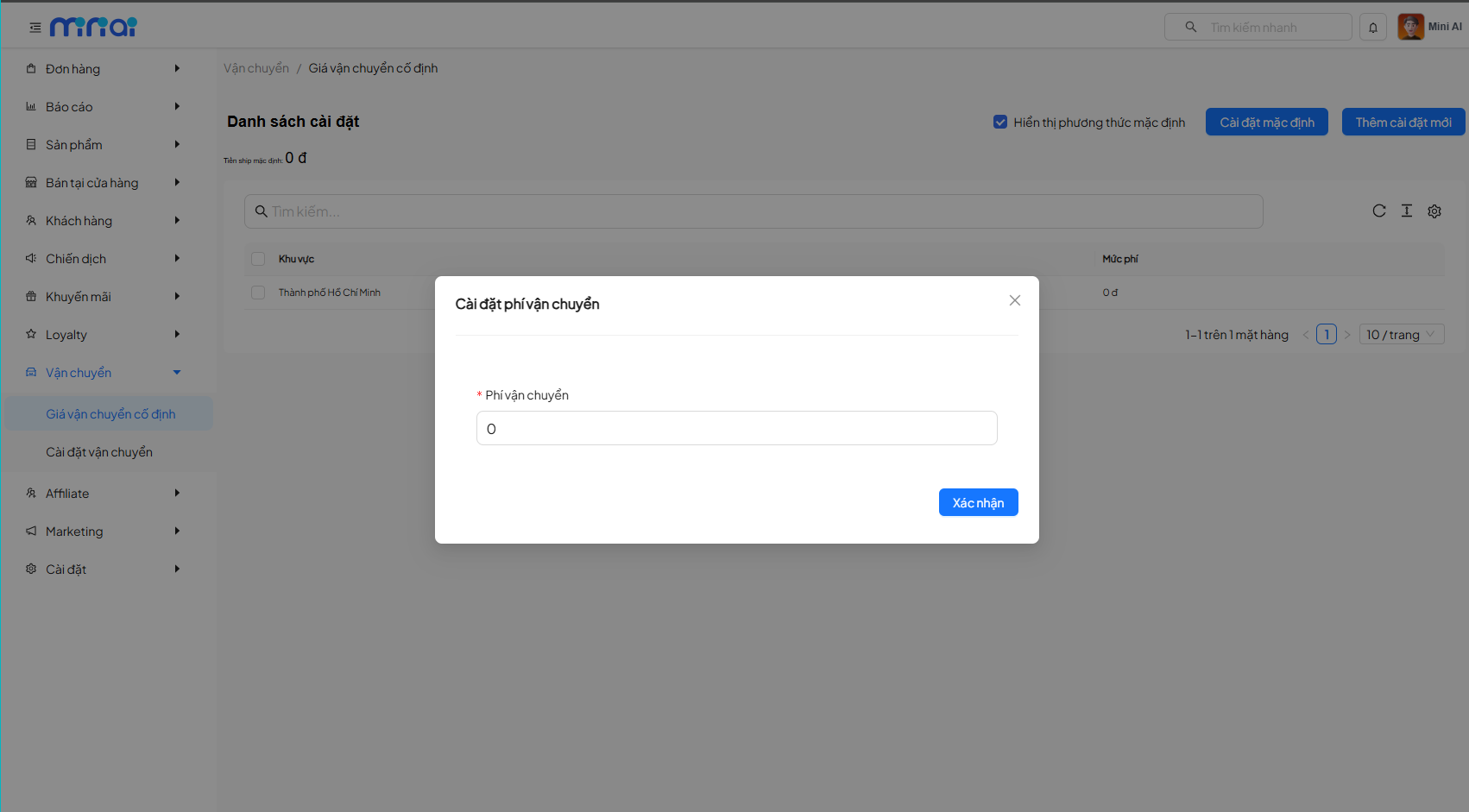
- Click the Default Settings button
- Enter the default shipping fee
- Click Confirm to save
Note
- The default shipping fee will be applied to areas without specific configuration.
- Make sure to enter a reasonable fee to avoid affecting the customer experience.
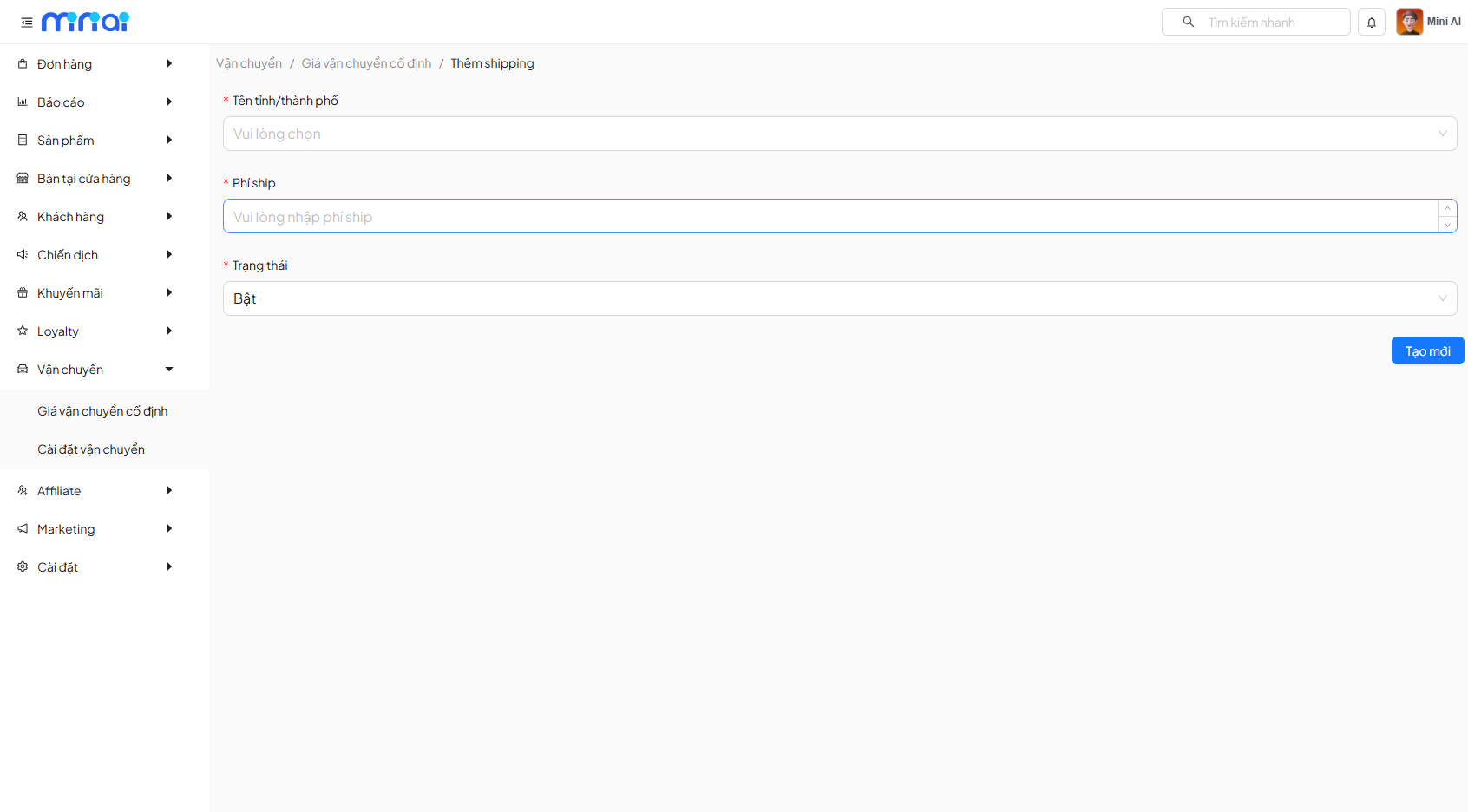
4. Adding a New Shipping Fee by Area
To create a shipping fee for each province/city, follow these steps:
- Click Add New Setting
- Select the Province/City name
- Enter the Shipping Fee
- Select Status (Enable/Disable)
- Click Create to complete
5. New Fee Form Field Descriptions
| Field | Required | Description |
|---|---|---|
| Province/City Name | Yes | The area to which the shipping fee is applied |
| Shipping Fee | Yes | The shipping fee amount applied to the corresponding area |
| Status | Yes | Enable/Disable to activate or deactivate the shipping fee |
| Create | — | Save and apply the shipping fee configuration |
6. Important Notes
Note
- If a delivery area has no specific configuration, the system will use the default shipping fee
- Each province/city should only have one shipping fee configuration
- Check the Enable/Disable status to ensure the fee is correctly applied when customers place orders