Survey Forms
Overview
Survey Forms are tools that help businesses:
- Collect opinions and ratings from customers
- Measure satisfaction levels with products and services
- Combine surveys with vouchers / rewards to increase participation rates
Accessing the Feature
From the left menu, navigate to:
Campaigns → Survey Form List
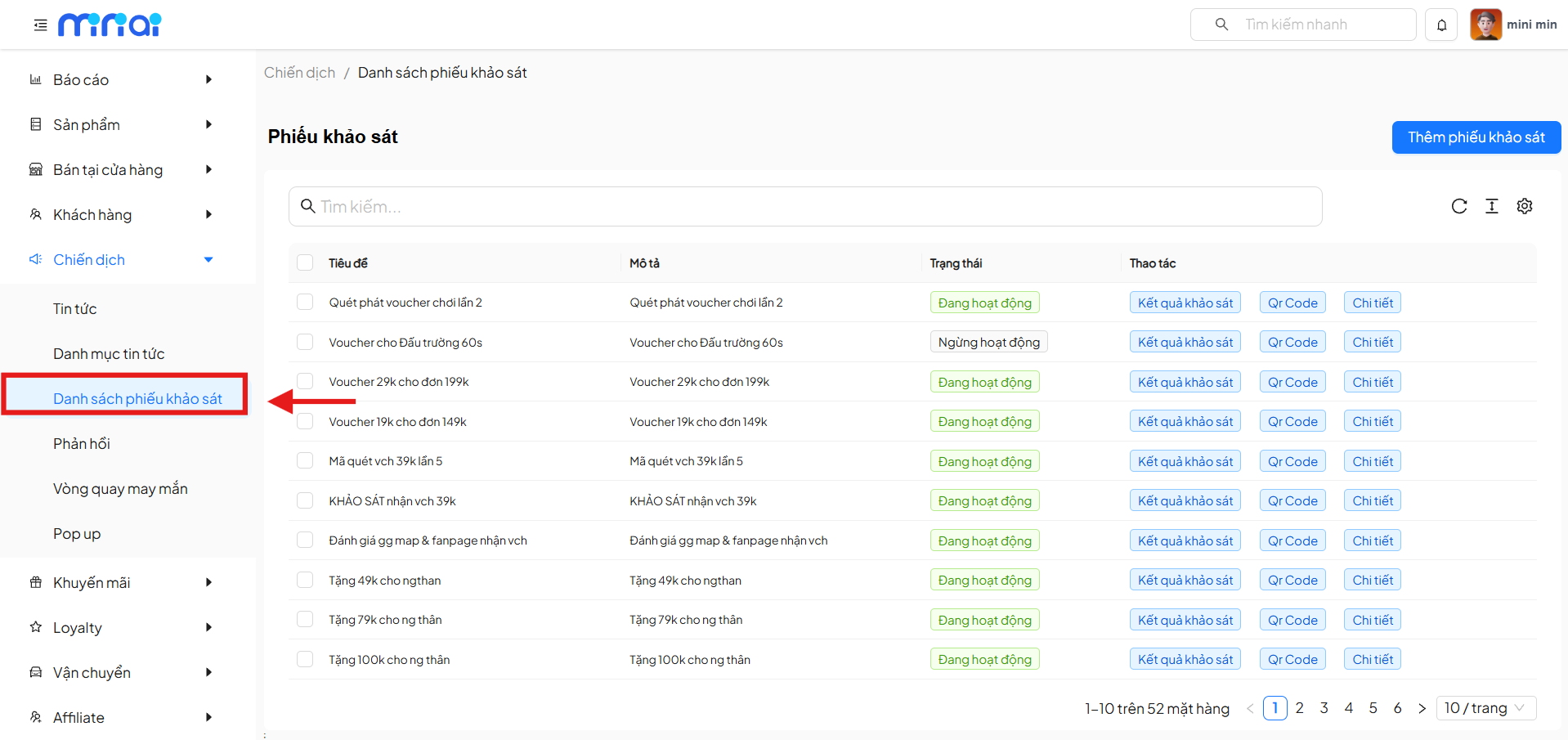
Survey Form List
The screen displays all survey forms created in the system.
Information Columns
| Field | Description |
|---|---|
| Title | Name of the survey form |
| Description | Brief description of the survey |
| Status | Active status of the survey |
| Actions | Survey management actions |
Survey Statuses
| Status | Meaning |
|---|---|
| Active | Customers can participate in the survey |
| Inactive | Survey temporarily does not allow participation |
Actions for Each Survey
| Action | Function |
|---|---|
| Survey Results | View the list of participants and results |
| QR Code | Generate a QR code for customers to access the survey |
| Details | View and edit survey information |
Create a New Survey Form
Click Add Survey Form to create a new survey.
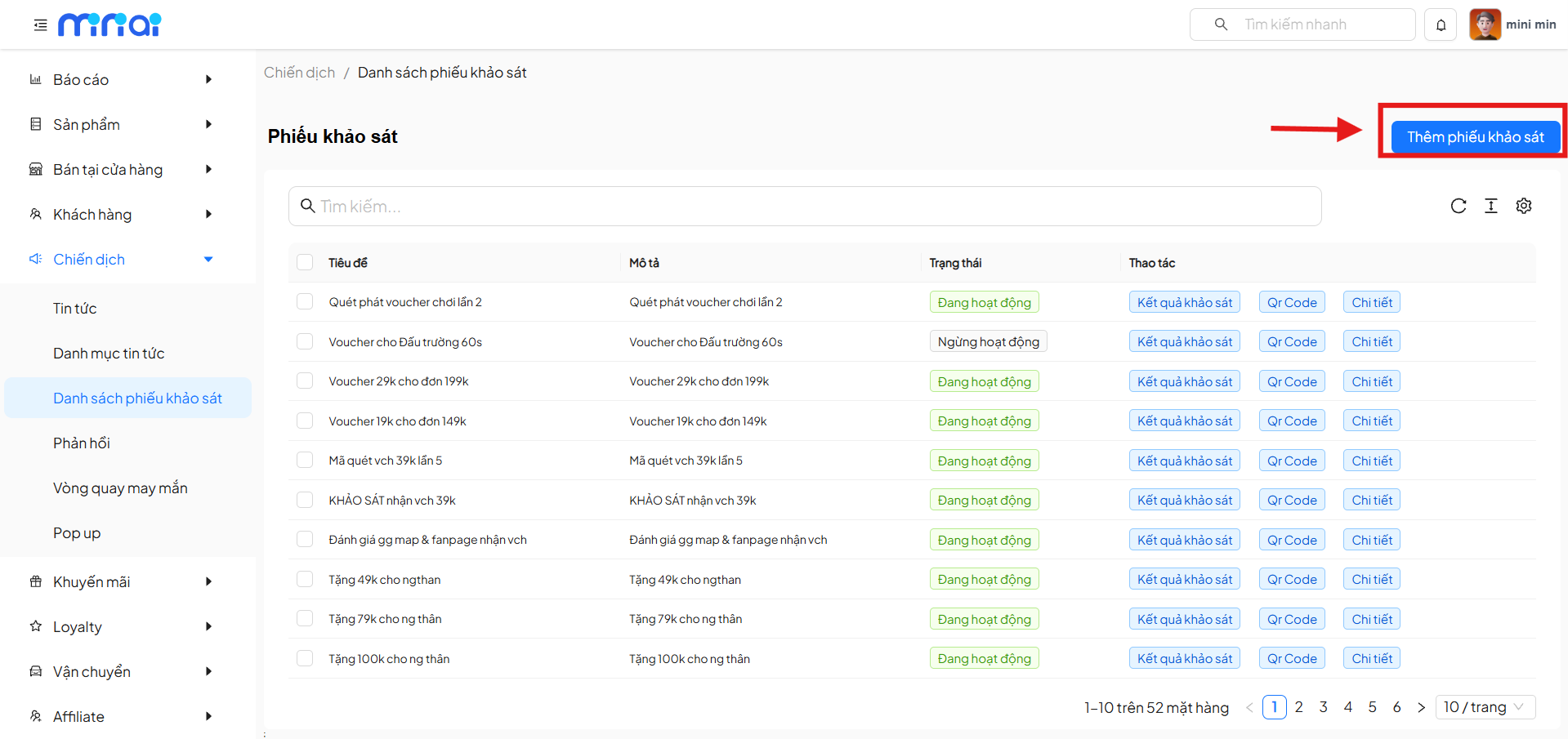
Basic Information
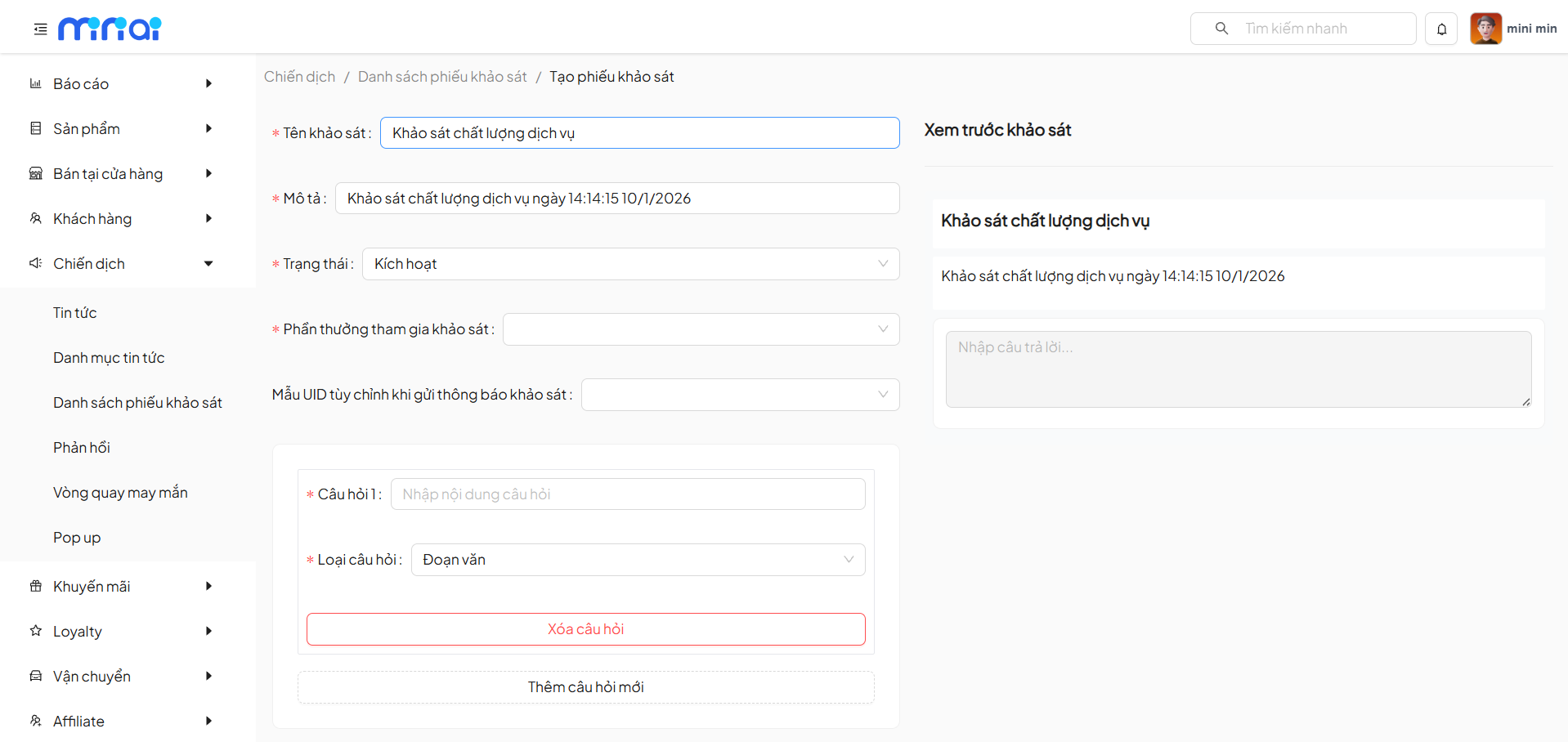
| Field | Description | Required |
|---|---|---|
| Survey Name | Display name of the survey | Yes |
| Description | Survey content description | Yes |
| Status | Activate / Deactivate | Yes |
| Survey Participation Reward | Voucher or offer for participants | No |
| Custom UID Template for Notifications | User identifier template when sending surveys | No |
Configure Survey Questions
Each survey form can include multiple questions.
Question Information
| Property | Description |
|---|---|
| Question | Question content displayed to users |
| Question Type | Determines how users answer |
Supported Question Types
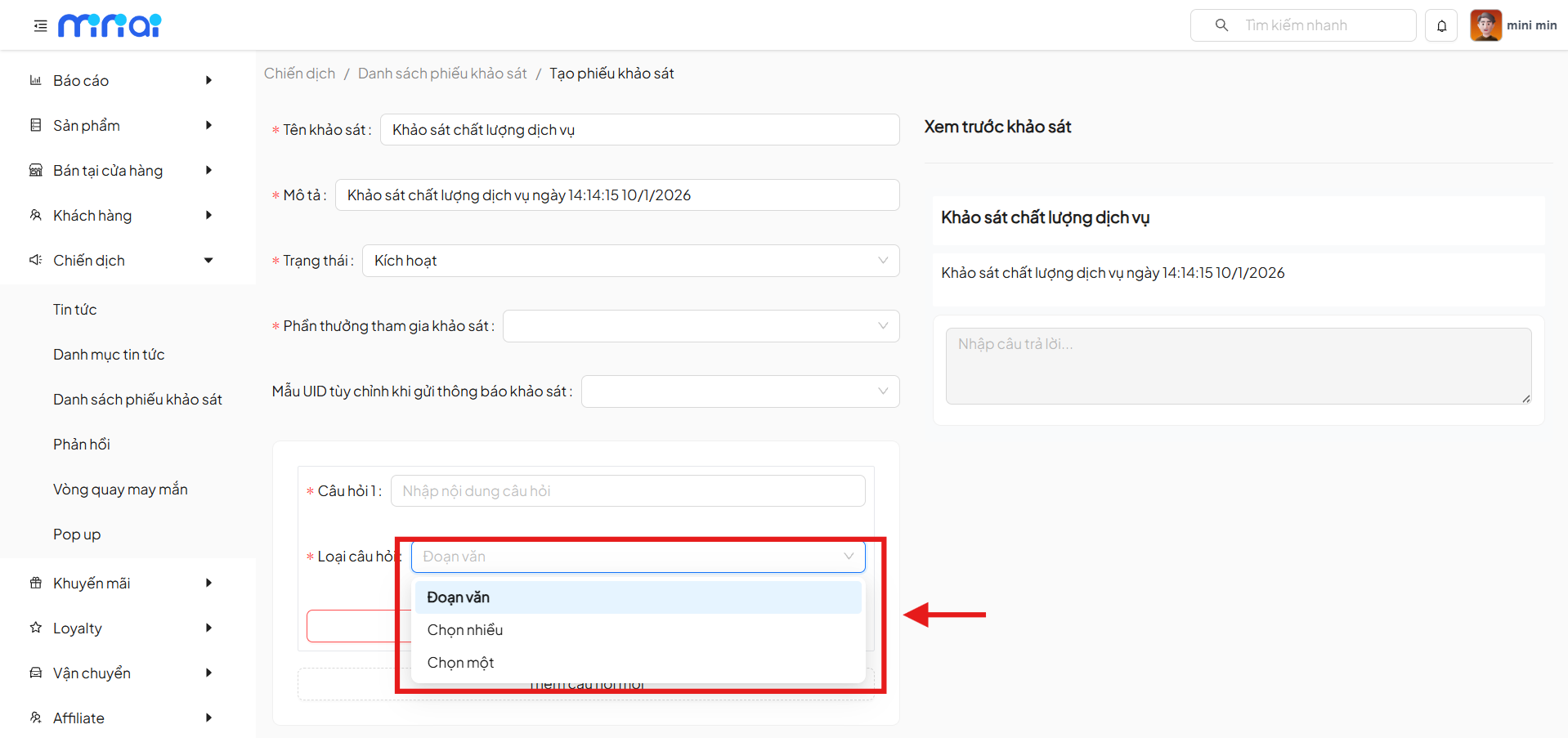
| Question Type | Description |
|---|---|
| Paragraph | Users enter a free-form answer |
| Single Choice | Users select one answer |
| Multiple Choice | Users select multiple answers |
Question Actions
| Action | Description |
|---|---|
| Delete Question | Remove the question from the survey |
| Add New Question | Add the next question |
Preview Survey
The Survey Preview section allows:
- Checking the display interface for users
- Viewing the title, description, and question types
- Ensuring content before publishing
List of Users Who Participated in the Survey
After the survey has participants, the system displays the results list.
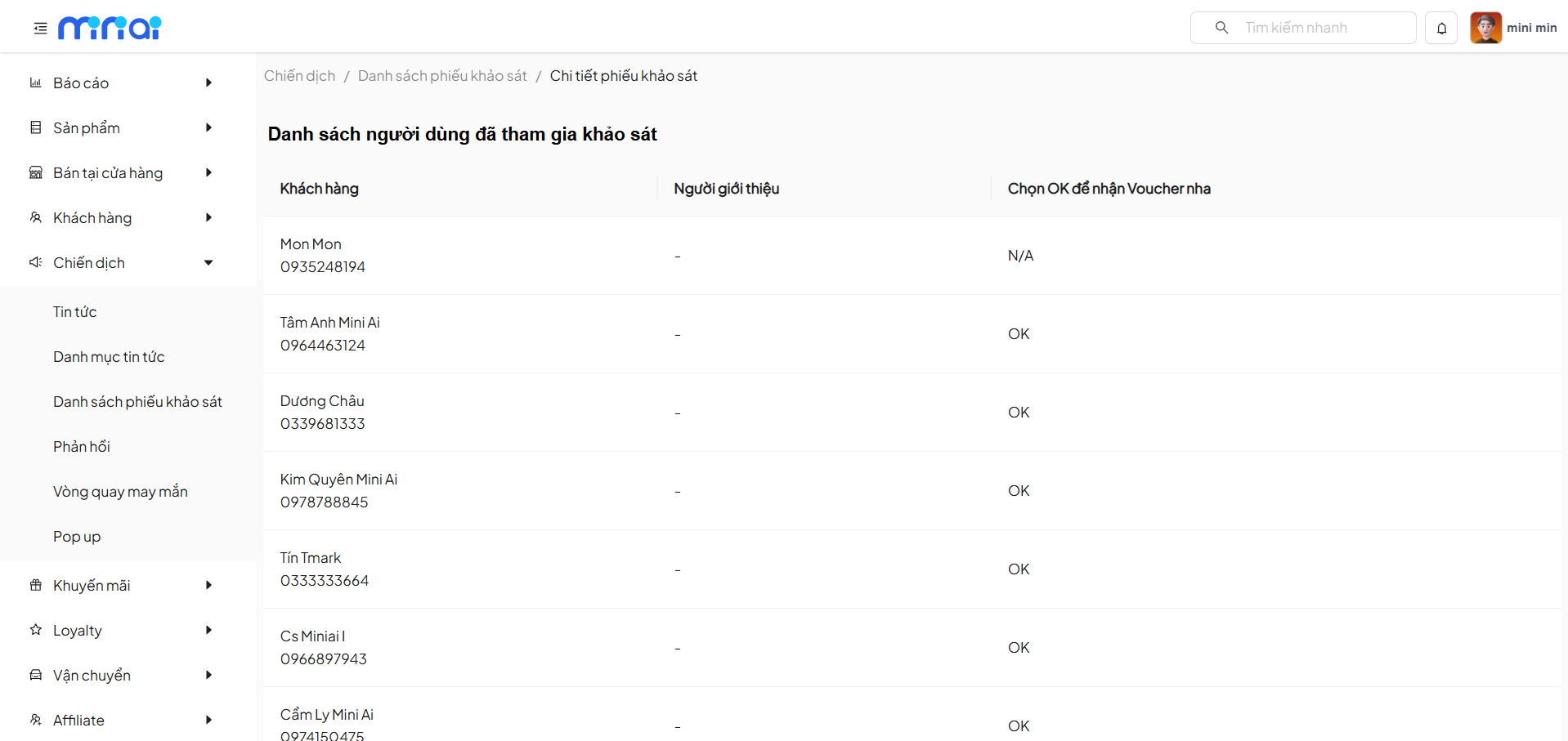
Displayed Information
| Field | Description |
|---|---|
| Customer | Name and phone number of the participant |
| Referrer | Referrer (if applicable) |
| Voucher Receipt Status | Reward confirmation status |
Reward Receipt Status
| Value | Meaning |
|---|---|
| OK | User is eligible and has received the voucher |
| N/A | Not applicable or not yet eligible |
Survey QR Code
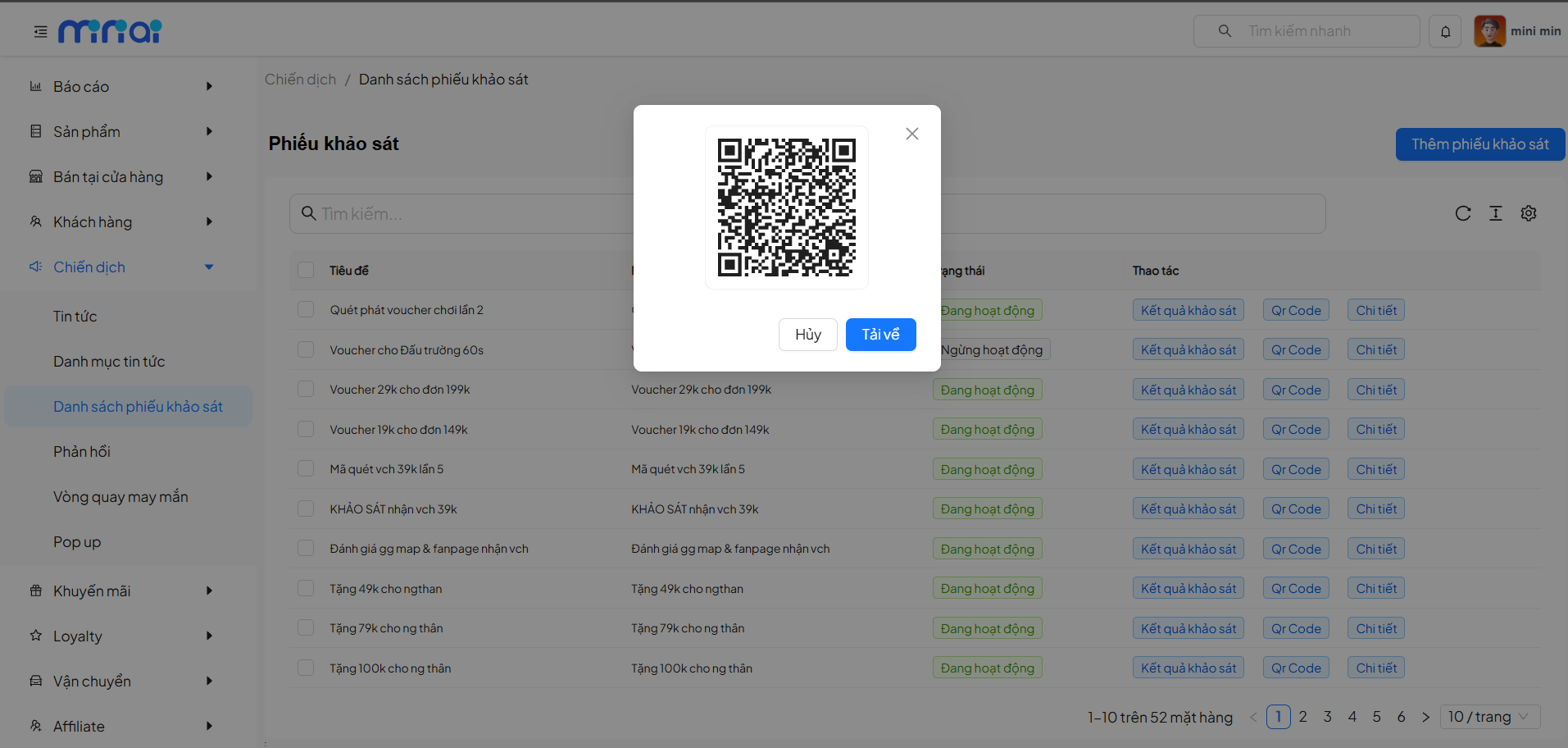
- Allows creating a QR Code for each survey form
- Supports:
- Downloading QR Code
- Printing and placing at stores
- Sharing online (Zalo, Facebook, Website)
Usage Notes
Important Note
- Survey names should be clear and easy to understand
- Only activate surveys after thoroughly reviewing content
- Combine surveys with rewards to increase participation rates
- Regularly monitor results to evaluate effectiveness
Conclusion
Tip
Survey Forms are important tools that help businesses:
- Understand customer needs and experiences
- Collect data to improve products and services
- Increase interaction through surveys with offers
Use them effectively to optimize your customer care campaigns